Printer Guide: Connect Feie, Yilianyun, Jolimark, Xprinter and More Printers for Free
Still handwriting delivery notes after every sale? Micro Quotation connects popular network cloud printers and Bluetooth receipt printers for free. Create a bill on your phone and print it with one tap, and customer self-service orders can print automatically. Network printers can even print on several printers at once: one copy at the front desk, one in the warehouse.
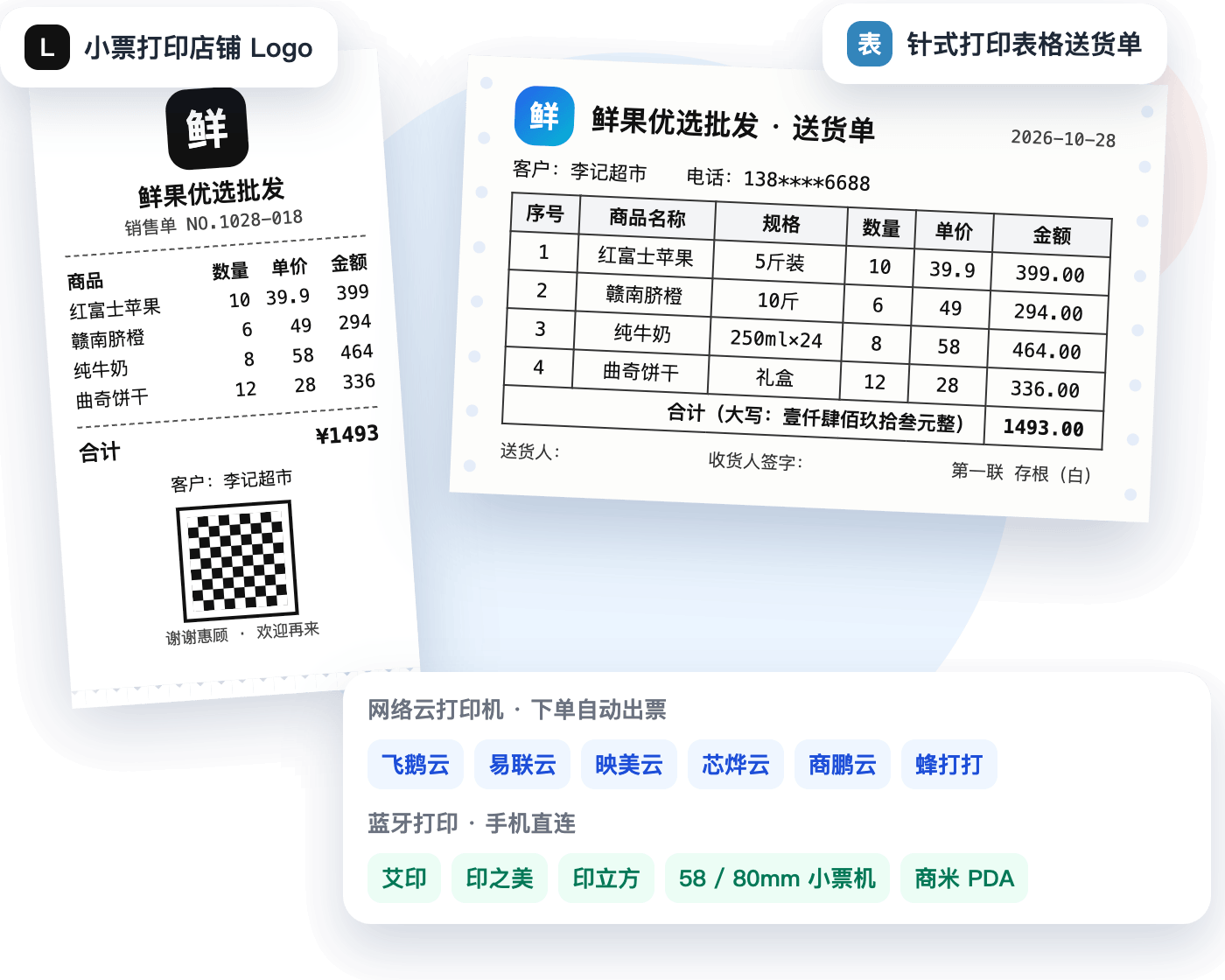
1. Supported printers
| Type | Brand / model | Best for |
|---|---|---|
| Network cloud printer | Feie Cloud printer, Yilianyun printer, Jolimark Cloud printer, Xprinter Cloud printer, Shangpeng Cloud printer, Fengdada cloud printer | Printing at a fixed spot in your store; customer self-service orders print automatically, so you don't have to watch your phone |
| Bluetooth printer | Aiyin, Yinzhimei, Yinlifang and other 58mm / 80mm Bluetooth receipt printers, plus the built-in printer on Sunmi PDAs | Deliveries, market stalls and warehouses; connect straight from your phone |
| Dot-matrix printer | Jolimark Cloud dot-matrix printer (120 / 240mm paper width) | Table-format delivery notes and multi-part forms |
2. Connect a network cloud printer
- Go to "Mine" → "Printer" and choose "Network printer";
- Under "Printer Brands", pick your printer, such as Feie Cloud, Yilianyun, Jolimark Cloud or Xprinter Cloud;
- Fill in the fields for your brand: most brands need the "Printer SN code" and "Printer Key", and you can tap the icon to scan the QR code on the printer; Xprinter Cloud only needs the SN code; for Fengdada, enter the IMEI, tap "Send Code", then enter the 6-digit code the printer prints out;
- Save, then tap "Print Text" to test. If paper comes out, you're connected.
3. Print on multiple printers at once (network printers)
Print a receipt for the customer at the front desk and a picking slip in the warehouse at the same time, so one bill prints in several places:
- Add a second network printer with the steps above (brands can differ, e.g. Feie Cloud at the front desk and Jolimark Cloud in the warehouse);
- In the printer settings, set the "Print role": "Default" for the main printer and "Follow print" for the others;
- When you tap "Print" on a bill, or a customer places a self-service order, every printer set to "Default" or "Follow print" prints together, each with its own paper width and layout settings.
| Print role | What it does |
|---|---|
| Default | The main printer; prints for both manual and automatic printing |
| Follow print | Prints together with the main printer |
| Do not print | Keeps the settings saved but doesn't print for now |
4. Connect a Bluetooth receipt printer
- Turn on Bluetooth on your phone and power on the printer;
- Go to "Mine" → "Printer" → "Bluetooth printer" and tap your printer under "Printers searched";
- Choose the paper width (58mm / 80mm). After creating a bill, tap "Print".
5. Common print settings
| Setting | What it does |
|---|---|
| Continuous Print | Print several copies at once, e.g. one for the customer and one for you |
| Print bill QR code | Customers scan it to view the e-bill |
| Print product barcode / customer phone / shipping address | Show them on the receipt as needed |
| Bold font, print darkness | Clearer receipts |
| Print cost & profit | Print cost and profit on your own copy |
| Print history | See every print job, handy for reprints |
6. Add your store logo to receipts
Upload your store logo in the printer settings and it's automatically cropped and converted to a black-and-white image suited to thermal paper. No logo? Generate one with AI from a single sentence. When printing bill images over Bluetooth, the logo can go in the header or footer; among network printers, Yilianyun currently supports logo printing, always at the top of the receipt.
7. Auto-print customer self-service orders
Once you turn on self-service ordering and bind a network cloud printer, turn on auto print in the order "Settings". The printer prints as soon as a customer orders, so you won't miss orders even when you're away from the store.
FAQ
- Does printing cost anything?
- Connecting printers and printing are both free. Receipts on the free plan end with one line of app info, which you can remove with a membership.
- Can I use a printer that isn't on the list?
- Supported network cloud printers are currently Feie Cloud, Yilianyun, Jolimark Cloud, Xprinter Cloud, Shangpeng Cloud and Fengdada. Bluetooth printing works with 58mm and 80mm Bluetooth receipt printers such as Aiyin, Yinzhimei and Yinlifang. For other models, check with customer support first.
- Can one store print on several printers at once?
- Yes, with network cloud printers. Set the other printers' "Print role" to "Follow print", and one bill prints at the front desk and in the warehouse at the same time. You can bind 1 printer by default; contact customer support to add more. Bluetooth printers don't support printing on several printers at once.