How to Sort Products in Bulk: Reorder in Excel and Import Back
Want your quotation in your own order: best sellers first, new arrivals together, slow movers at the end? With hundreds of products, editing them one by one on a phone is slow. Export to Excel → reorder on your computer → import it back, and the whole list is sorted in minutes. Your quotation and the quotations your customers see will follow the new order.
1. Export your products to Excel
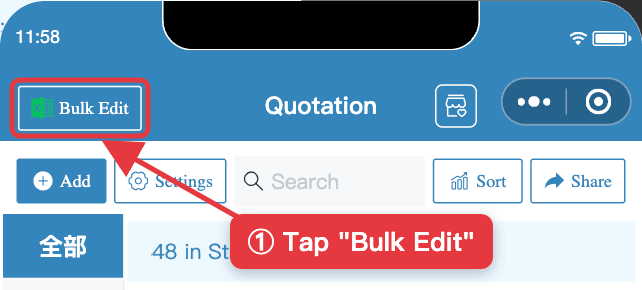
- Tap "Quotation" at the bottom, then "Bulk Edit" at the top left.
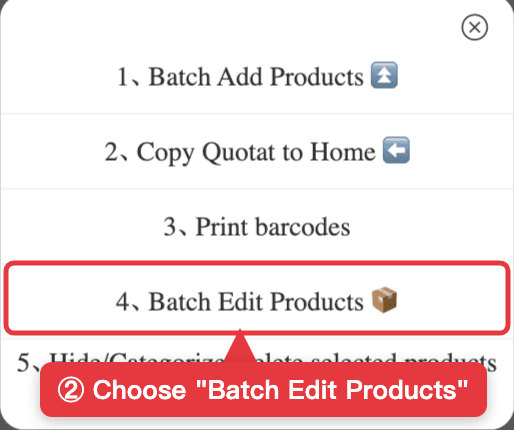
- Choose "Batch Edit Products" from the menu.
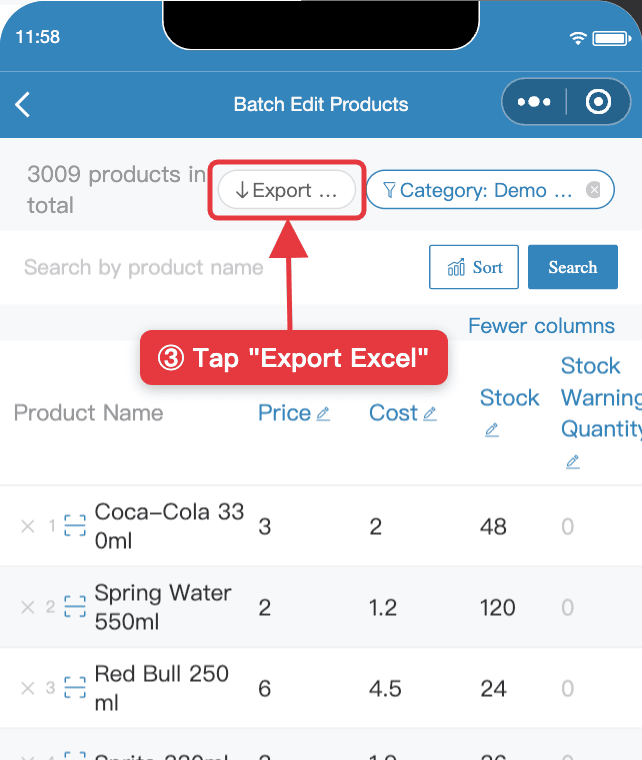
- Tap "Export Excel" at the top. It exports every product in your quotation.
2. Reorder the products on your computer
Open the file in Excel (or WPS / Google Sheets). Each row is one product.
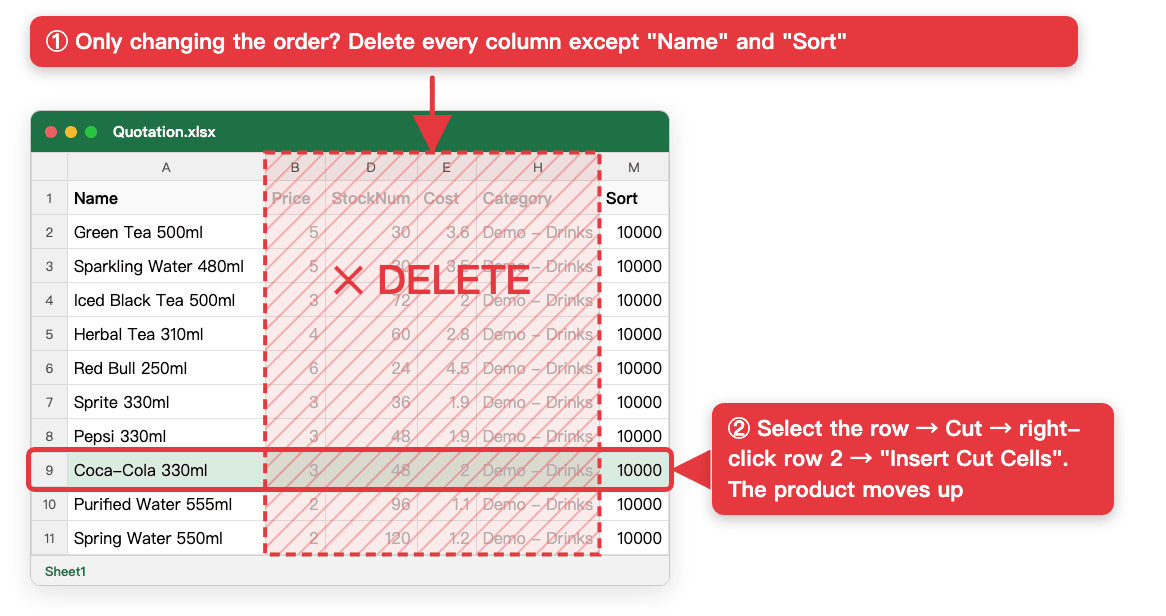
Move rows up or down into the order you want: select the whole row, cut it, then right-click the target row and choose "Insert Cut Cells".
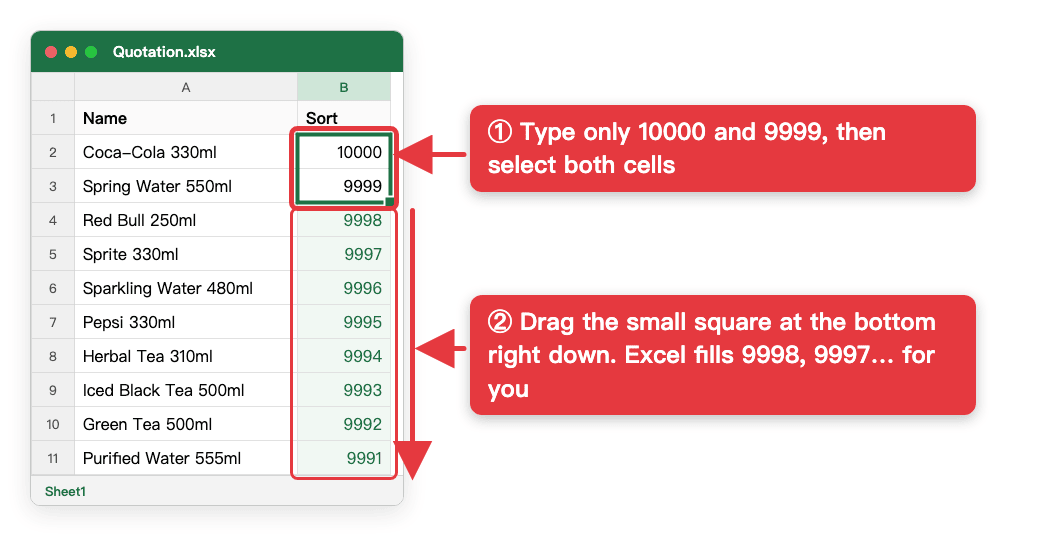
3. Type 10000 and 9999, then drag down
Once the order is right, you don't need to type every number in the "Sort" column. Type just two numbers and drag:
- Type 10000 for the first product and 9999 for the second;
- Select both cells and drag the small square at the bottom right down to the last row. Excel fills in 9998, 9997, 9996… in descending order.
Bigger numbers come first, so counting down from the top gives you exactly the order you set in Excel.
4. Import the Excel back
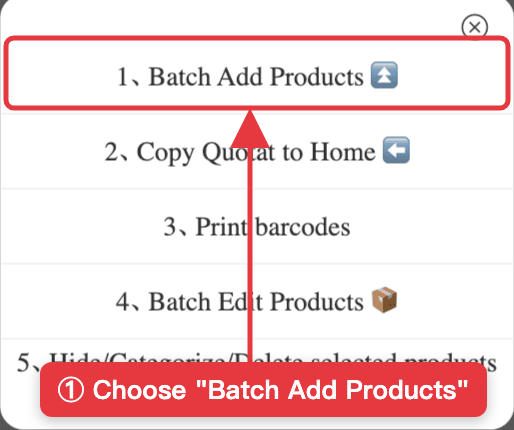
- Save the file, go back to "Quotation", tap "Bulk Edit" → "Batch Add Products".
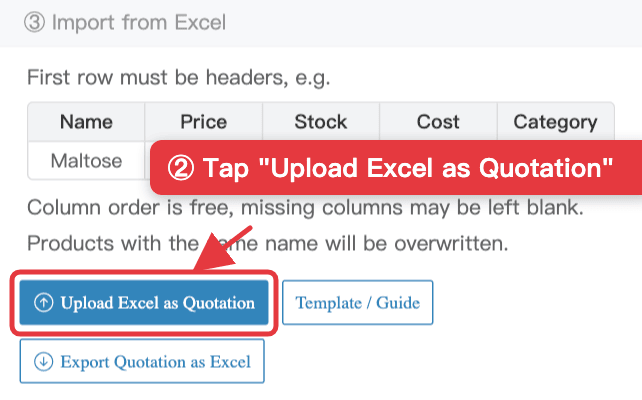
- Scroll down to "③ Import from Excel", tap "Upload Excel as Quotation", pick the file you saved and confirm.
5. Check the result
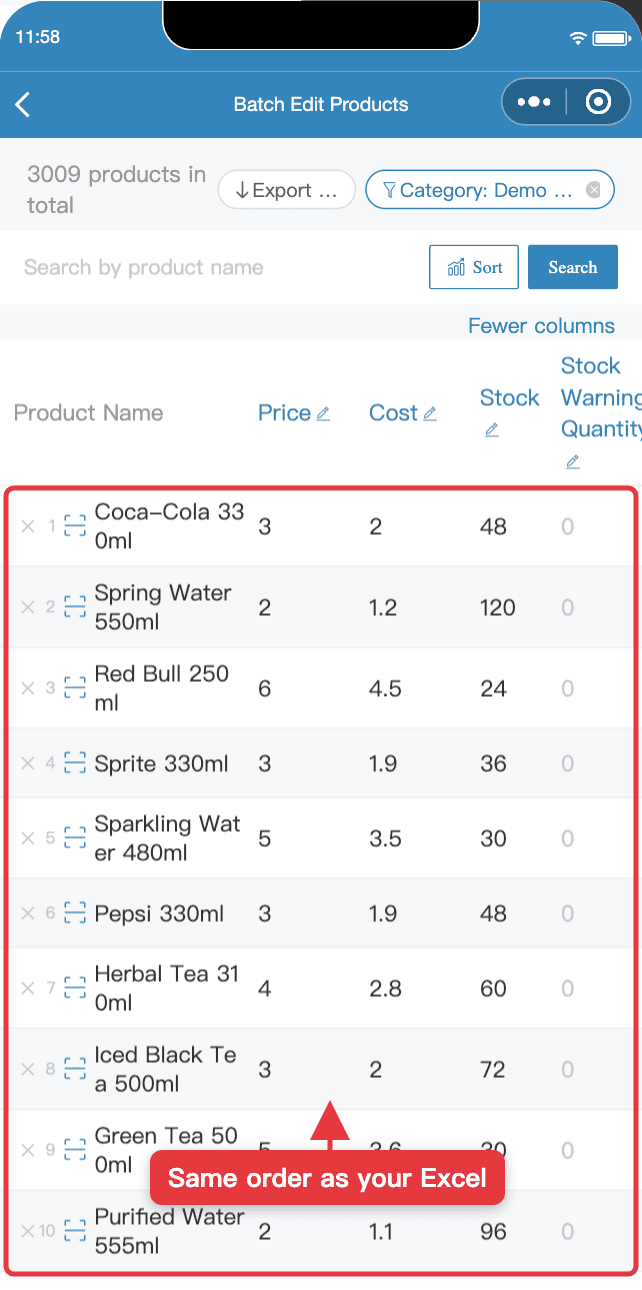
After the import, your quotation, the Batch Edit Products page and the quotations you share with customers all follow the new order. To change it later, just repeat these steps. For one or two products, you can also edit "Sort position" on the product's edit page.
FAQ
- The exported Excel has no "Sort" column. What should I do?
- Add a new column at the end, name its header "Sort", fill in the numbers and import. When the import finds a Sort column, product sorting is turned on automatically.
- I only want to change the order. Will my prices or stock change?
- No. Delete every column except "Name" and "Sort" before importing. Columns missing from the file are left untouched, so prices, stock, images and categories stay as they are.
- Will importing the Excel add my products twice?
- No. Products are matched by name. If the name is unchanged, only the columns in the file are updated. A renamed product is added as a new one.
- Do I have to type every sort number?
- No. Type 10000 in the first row and 9999 in the second, select both and drag down. Excel fills in the descending numbers for you. Bigger numbers come first.