Inventory Management Guide: Products, Stock In/Out, Stocktaking and Low-Stock Alerts
The two biggest inventory headaches are stock that doesn't match your records and running out without knowing. Micro Quotation ties inventory to billing: sales bills deduct stock automatically, purchase bills add it, and you get alerts when stock runs low. You can run a whole warehouse from your phone.
1. Set up your products first
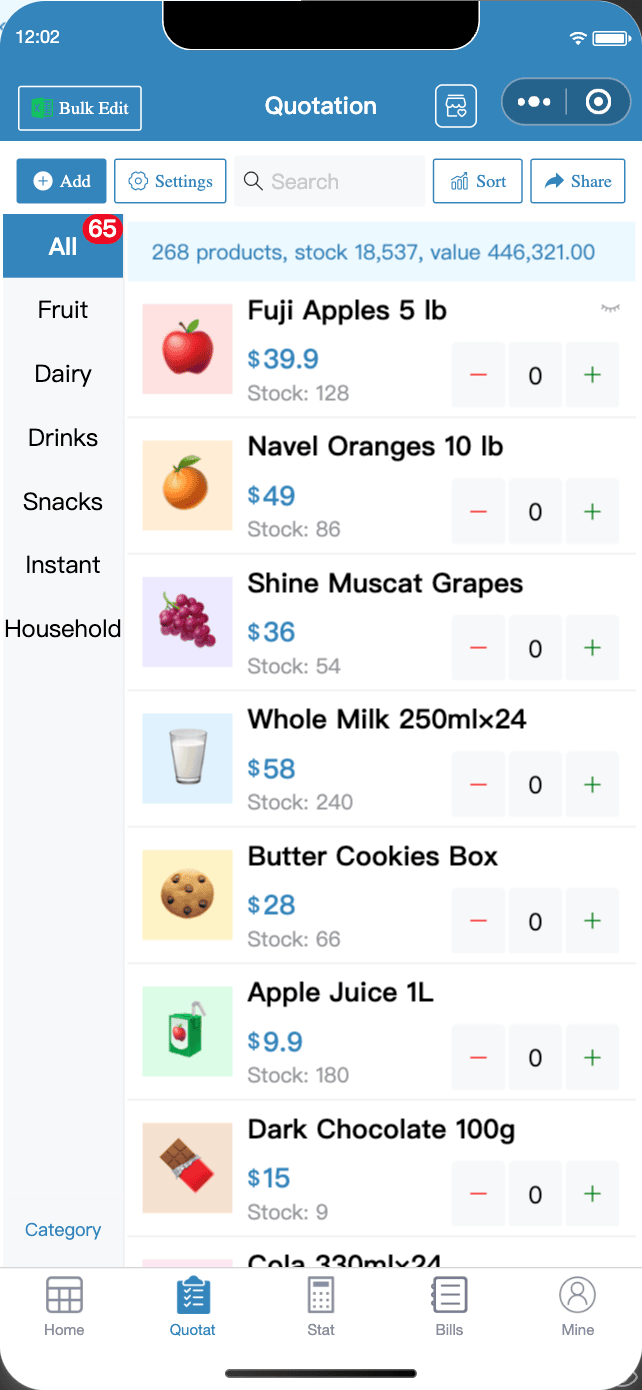
- Tap "Quotation" at the bottom, then "Add" at the top left.
- Fill in the product name, selling price, cost, stock and barcode. For products with a barcode, tap "Scan product code for quick input" and the name and image fill in automatically.
- Under "Product advanced setting", fill in "Stock Warning Quantity"; low-stock alerts depend on it.
Lots of products? Use "Bulk Edit" → "Batch Add Products" to paste text or import an Excel file and create hundreds of products at once.
2. Turn on automatic stock in/out
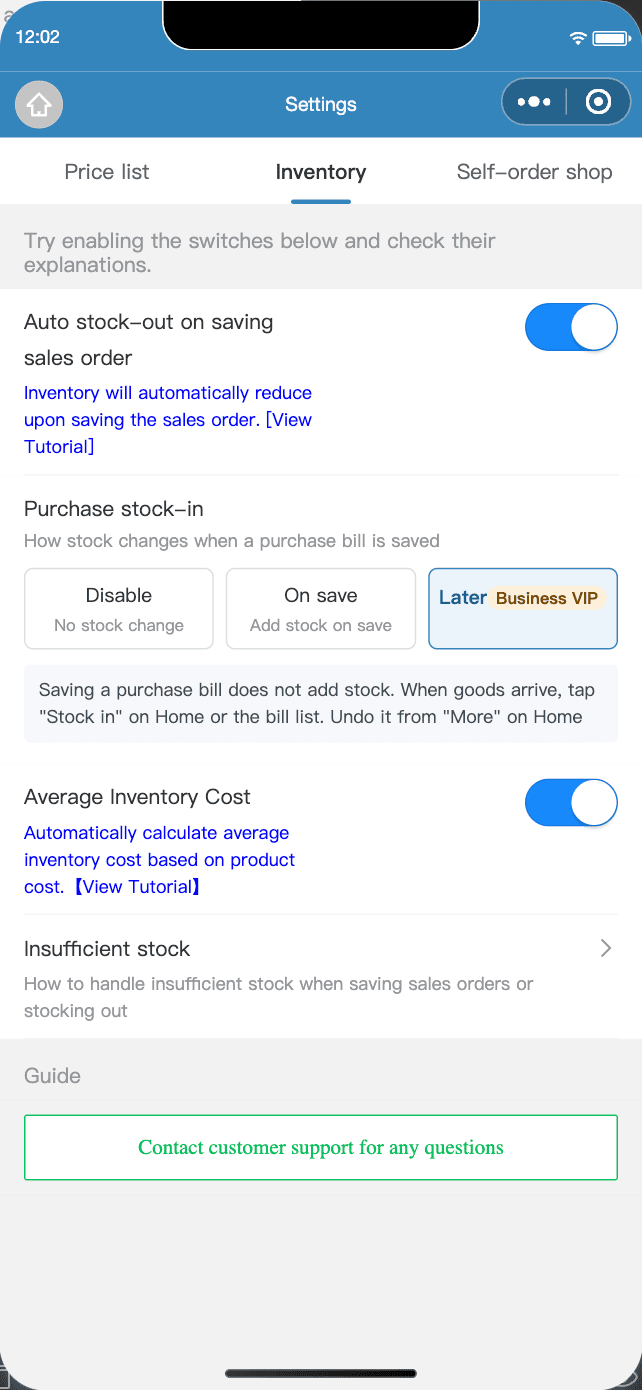
Go to "Quotation" → "Settings" → "Inventory":
| Setting | What it does |
|---|---|
| Auto stock-out on saving sales order | Saving a sales bill deducts stock; editing or deleting a bill rolls stock back |
| Purchase stock-in | Disable / On save / Later. "Later" suits goods still in transit: tap "Incoming" when they arrive (Enterprise membership) |
| Average Inventory Cost | Calculates the average inventory cost automatically on stock-in, so profit is more accurate |
| Insufficient stock | No check / Warn, allow billing / Block billing |
3. Manual stock-out, stock-in and stocktaking
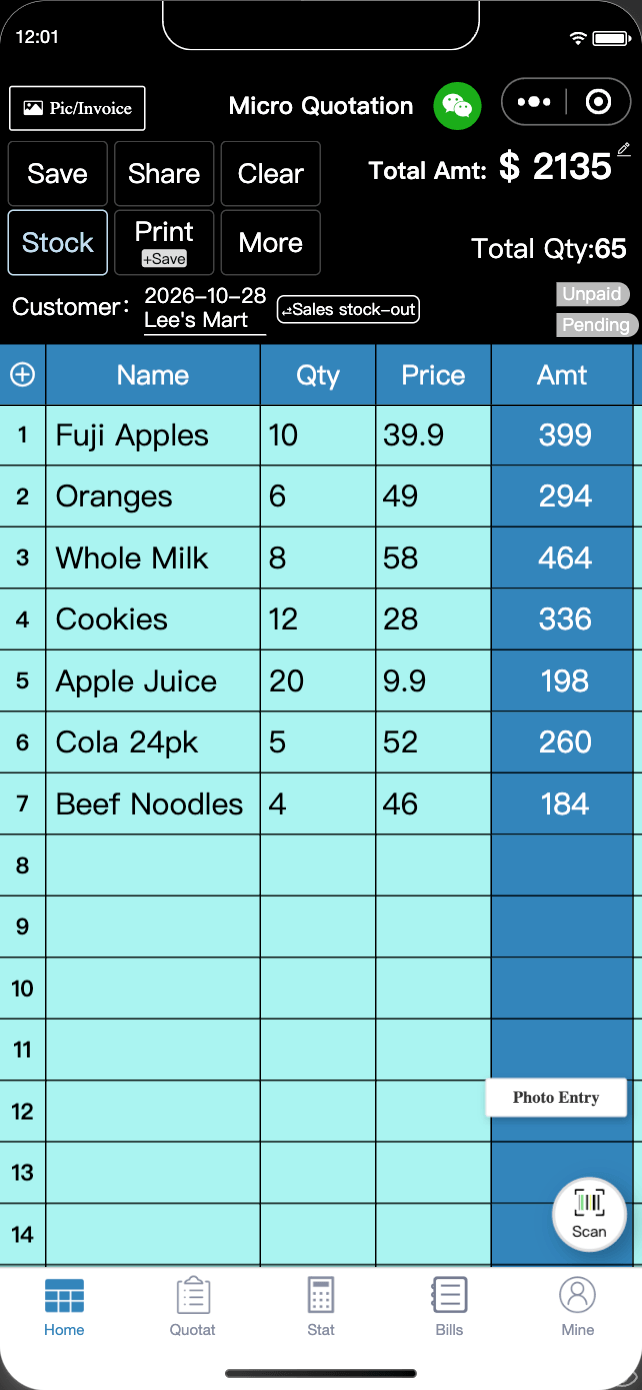
For stock changes without a bill (such as damaged goods or transfers), enter the products and quantities in the bill table on "Home", then tap "Stock":
- "Stock deduct" / "Stock Add": decrease or increase stock by the quantities in the table;
- "Set Qty as stock": set the table quantities as the actual stock, for month-end stocktakes.
4. Low-stock alerts: know before you run out
- Products at or below their warning quantity show a red "Low stock" tag;
- In "Quotation", check "Low stock goods only" to quickly filter the items you need to restock;
- In "Batch Edit Products", tap "Check the quotation sheet for items in urgent stock shortage" to generate a restock list on Home in one tap, then change it to a purchase bill and save.
5. View the stock log
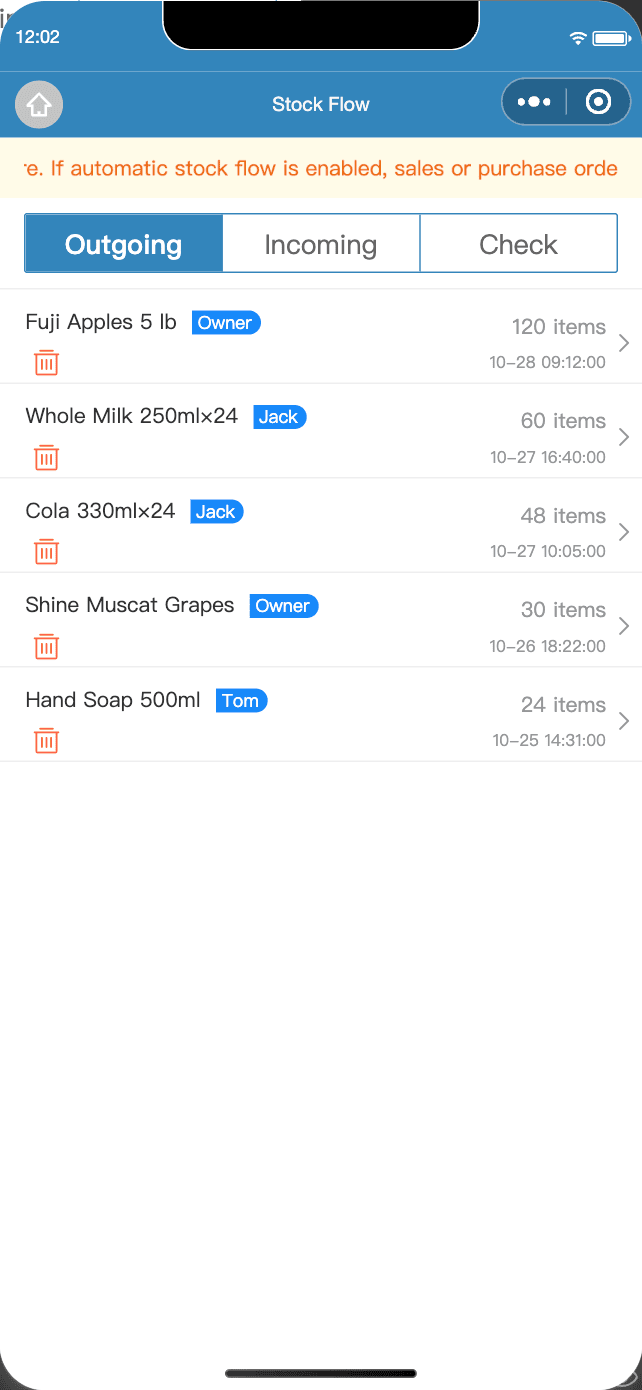
In the "Stock" menu, tap "View stock changelog" to see every manual stock change, sorted into Outgoing / Incoming / Check, with who made it and when.
FAQ
- With "Auto stock-out on saving sales order" on, does stock change when I edit or delete a sales bill?
- Yes. When you edit or delete a sales bill, stock rolls back automatically to match. No manual adjustment needed.
- Why don't sales bills show up in the stock log?
- The log only records manual stock-out, stock-in and stocktakes. With automatic stock in/out on, sales and purchase bills are themselves the stock change records; view them under "Bills".
- Does a stocktake overwrite existing stock?
- Yes. "Set Qty as stock" makes the quantities in the table the new stock levels, and asks you to confirm first. For important data, export an Excel backup first.
Download Micro Quotation and start billing for freeGet the App