Print Product Barcode Labels in Bulk: Add or Generate Barcodes, Print over Bluetooth
With barcodes on your products, billing, stocktaking and stock-in all become a quick scan, with fewer mistakes. Micro Quotation can generate barcodes for every product that has none in one tap, then print barcode labels in bulk on a Bluetooth label printer: dozens or hundreds of products in one go.
You need a Bluetooth label printer that supports CPCL commands (such as the ID323) and 50mm-wide label paper. The phone connects to the printer directly over Bluetooth; no computer needed.
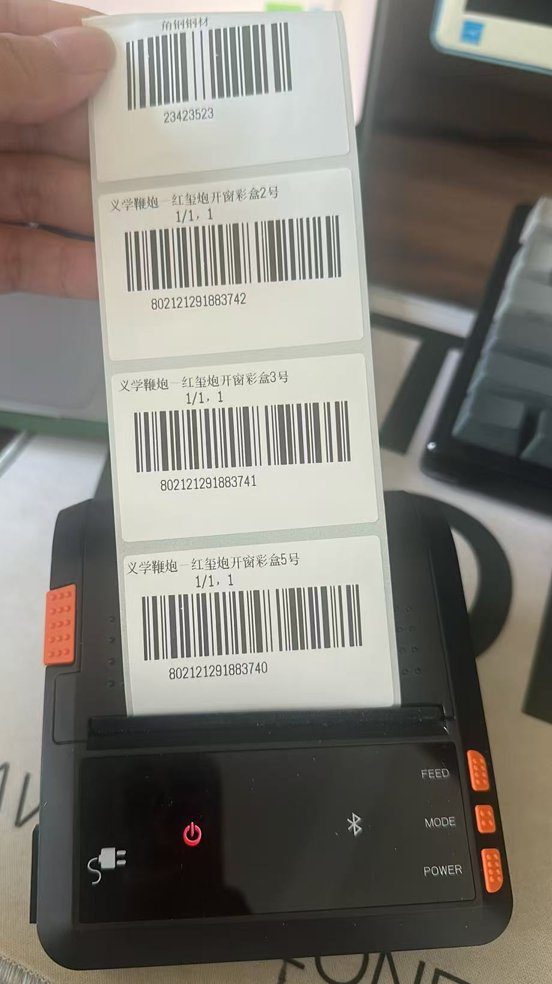
What the labels look like
Here are "Product labels" a merchant printed on a Bluetooth label printer: product name and spec on top, barcode and digits below, one label per product, ready to stick on shelves or packaging and scan at checkout.
1. Add barcodes to your products
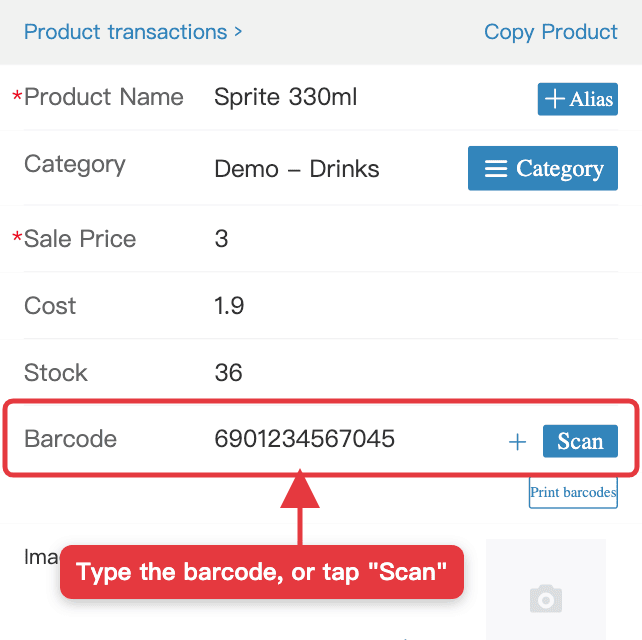
If your products already have barcodes on the packaging, enter them in one of three ways:
- One by one: open a product in Quotation, type it in the "Barcode" field, or tap "Scan" to scan the barcode on the packaging.
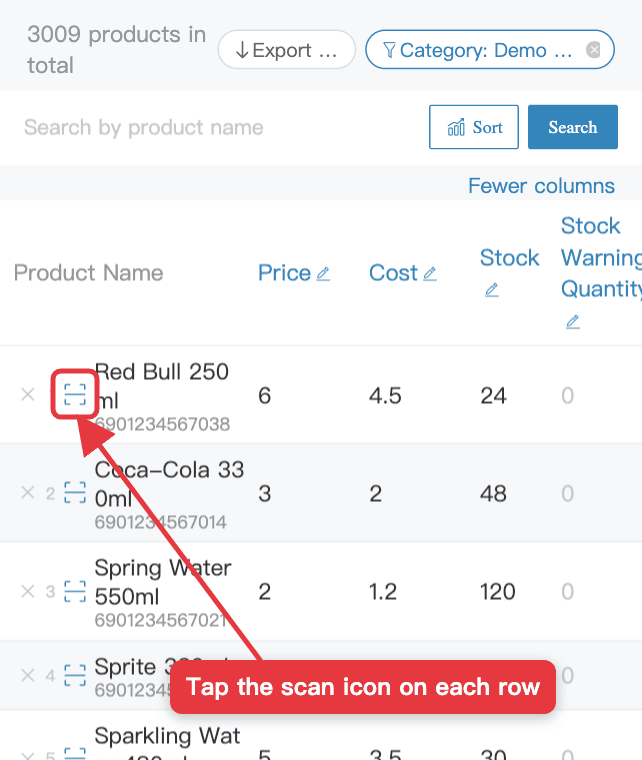
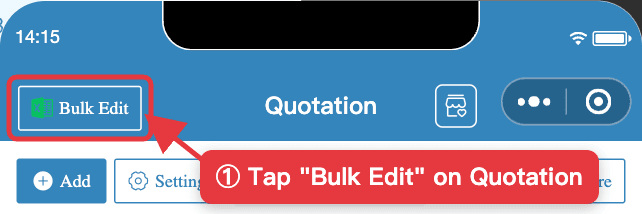
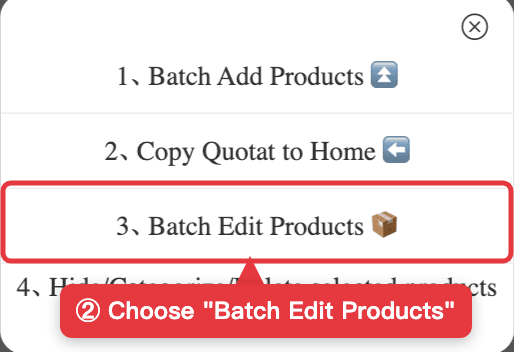
- Scan in bulk: on Quotation, tap "Bulk Edit" → "Batch Edit Products". Every row has a scan icon before the name; tap it and scan, row after row.
- Excel import: fill in the "Barcode" column in Excel and import it with "Batch Add Products", just like in How to Sort Products in Bulk.
2. No barcodes? Generate them in one tap
For products you make yourself or sell loose, let the app generate barcodes:
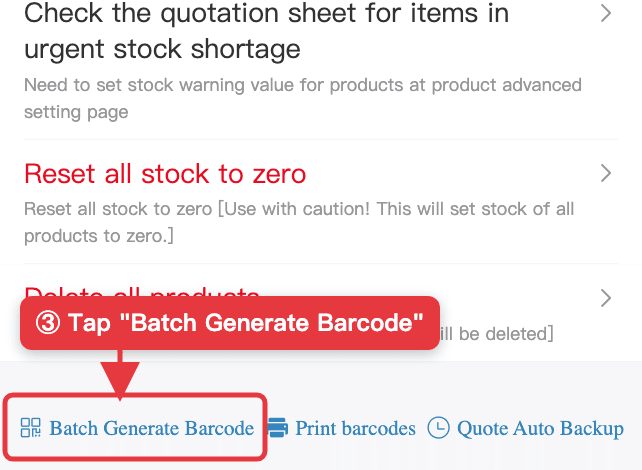
- On Quotation, tap "Bulk Edit" → "Batch Edit Products", scroll to the bottom and tap "Batch Generate Barcode".
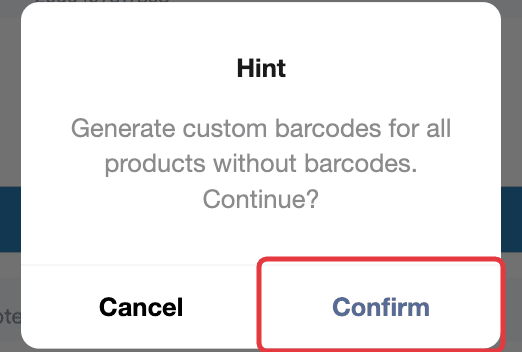
- Tap "Confirm". Every product without a barcode gets one; products that already have a barcode are left alone.
- When it is done, you can export the quotation to Excel as a backup.
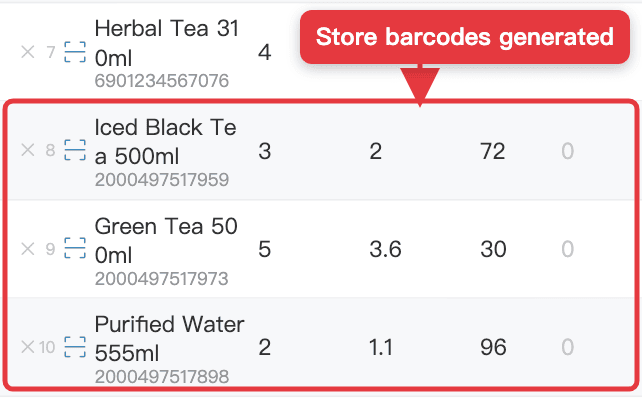
The generated codes are 13-digit in-store codes starting with 20 (EAN-13 format). Barcode scanners and the app's scan billing both read them; use them inside your own store. Only the shop owner's account can generate them.
3. Print barcode labels in bulk
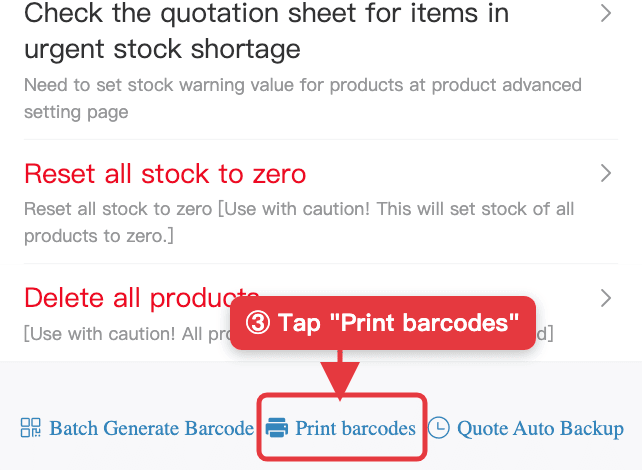
- On Quotation, tap "Bulk Edit" at the top left, choose "Batch Edit Products", scroll to the bottom and tap "Print barcodes". For a single product, the product page also has "Print barcodes" under the barcode field.
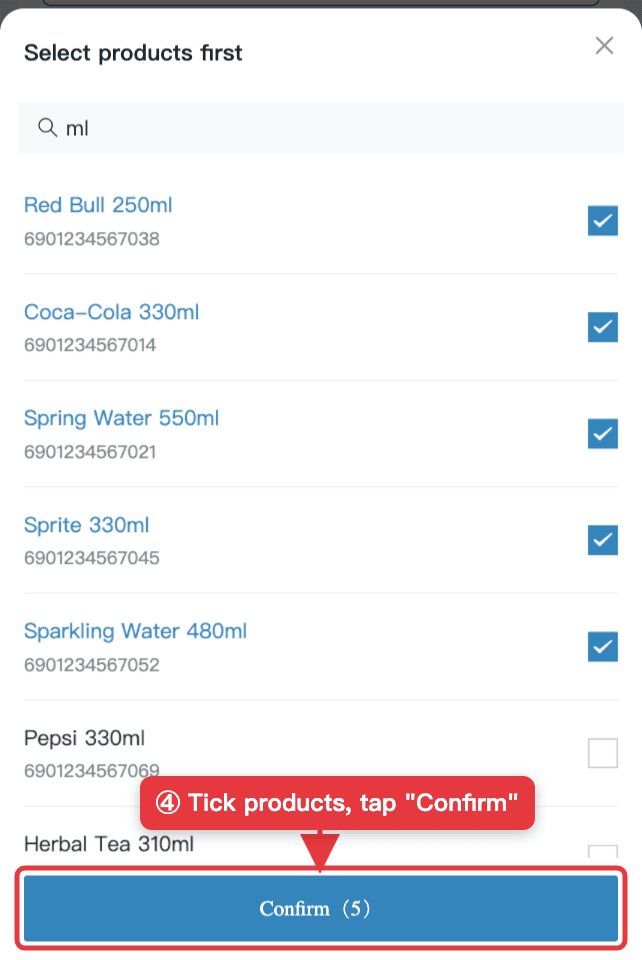
- Choose what to print: "Select products" to tick them, or "By category" / "All products". Set copies per product; with "Skip products without barcodes" on, products without a barcode are skipped.
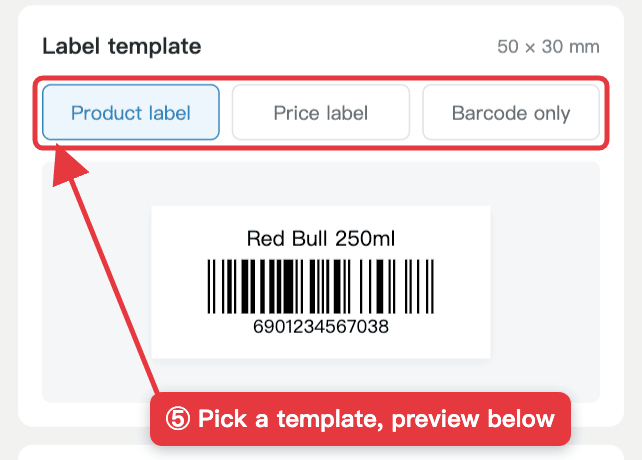
- Pick a template: "Product label" prints the name, spec and barcode, "Price label" prints the name and price, "Barcode only" prints just the barcode. A live preview shows below.
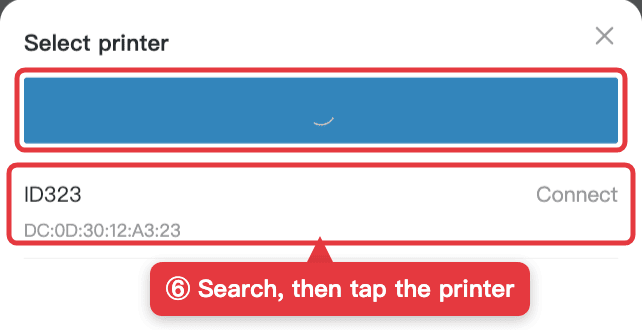
- Connect the printer: tap "Select printer" → "Search printers", then tap your printer in the list. Next time it reconnects automatically.
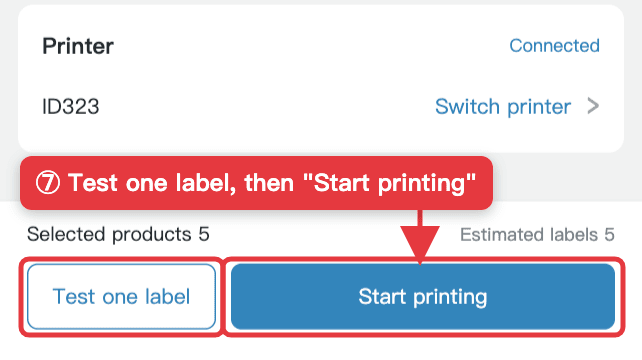
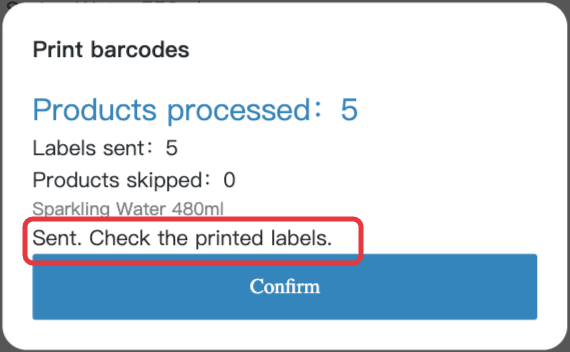
- Tap "Test one label" to check the position, then "Start printing". You can pause or stop while printing.
13-digit numeric codes with a valid check digit print as EAN-13, the same as supermarket barcodes; other codes print as CODE128. Scanners read both.
FAQ
- Can I print labels for products without a barcode?
- Yes. Tap "Batch Generate Barcode" at the bottom of "Batch Edit Products" to give every product without a barcode an in-store code, then print. "Skip products without barcodes" also skips them automatically.
- Can a barcode scanner read the generated codes?
- Yes. They are 13-digit in-store codes starting with 20 (EAN-13 format). Scanners and the app's scan billing both read them; use them inside your own store.
- Which label printers are supported?
- Bluetooth label printers that support CPCL commands, such as the ID323, with 50mm-wide label paper. Product and price labels are 50×30mm; Barcode only is 50×20mm.
- Can I print a whole category at once?
- Yes. Choose "By category" and tick the categories, or "All products". "Select products" prints only the ones you tick.
Download Micro Quotation and start billing for freeGet the App