Scan-to-Bill Guide: Create a Bill in Seconds with Your Phone Camera or a Bluetooth Scanner
With lots of products, typing names is slow and error-prone. With scan-to-bill, just scan the barcode and the product name, image and price fill into the bill. One bill takes seconds.
1. Three places to scan
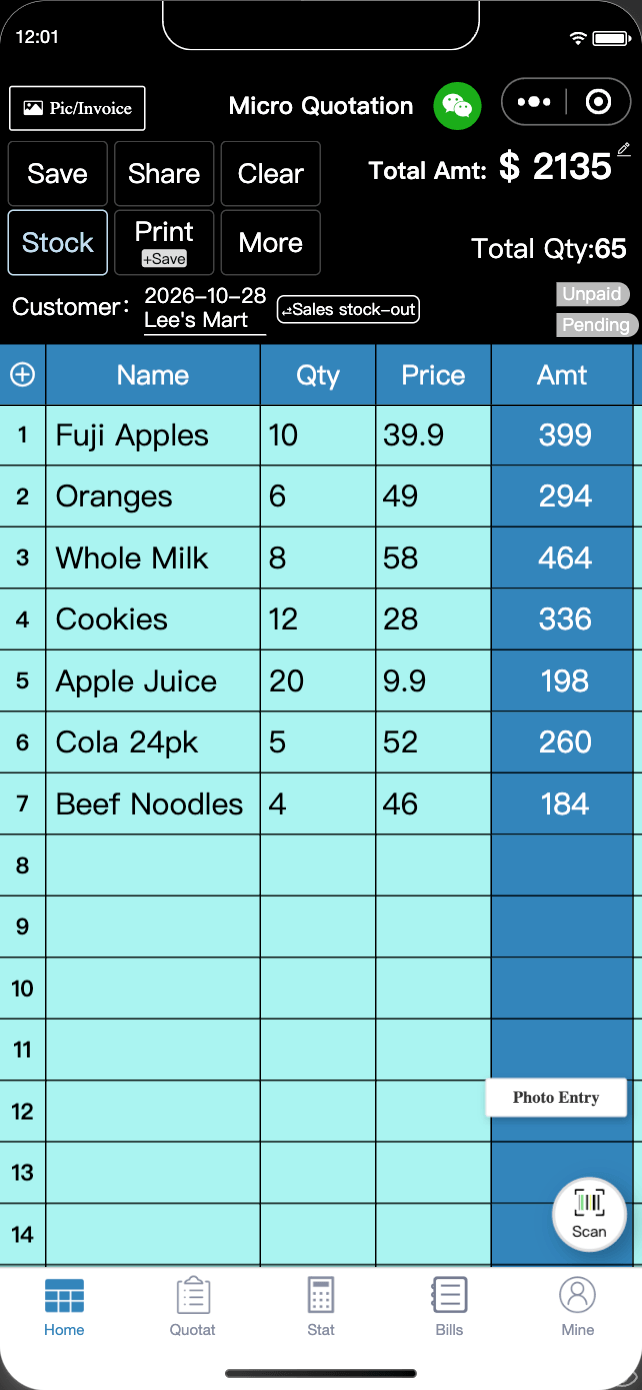
- "Scan" floating button on Home: scan items into the table as you bill;
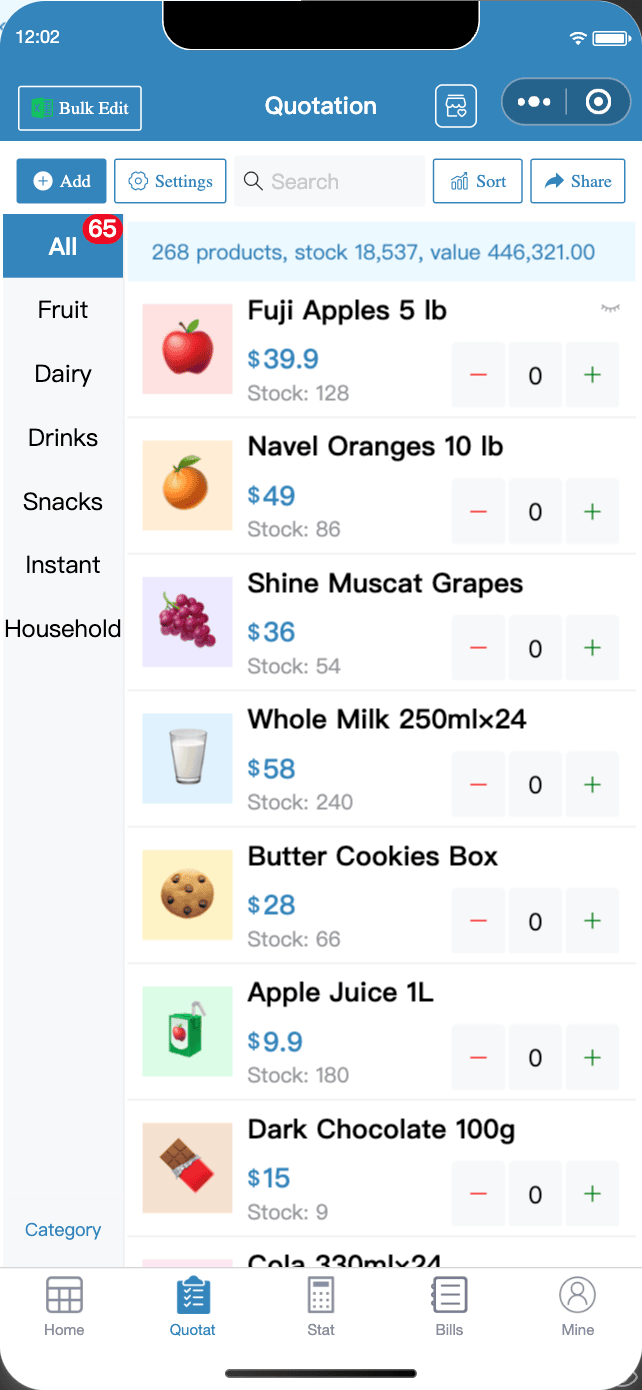
- "Scan Search" in the Quotation search box: quickly find a product and check its price and stock;
- "Scan product code for quick input" on the add product page: scan once when adding a product and the name and image fill in automatically.
2. Where does the product info come from?
Barcodes are matched in this order, most accurate first:
- Products in your own Quotation (with your own selling price);
- The shared barcode database;
- Products with the same barcode from other merchants;
- A barcode lookup service.
When a scan matches one of your own products by name, the barcode is saved to that product, so next time the scan brings up your price directly.
3. Scan settings
Go to "Mine" → "Advanced" → "Scanner" to adjust scanning to your habits:
| Setting | Description |
|---|---|
| Show scan ball | Show the floating scan button on Home |
| Scan without price | Add items without prices, good when prices change often |
| Allow own codes | Recognize your store's own product codes |
| Scan list items only | Only match products in your own Quotation |
| Go to Qty after scan | Type the quantity right after scanning for faster billing |
4. Connect a barcode scanner for faster billing
For wholesale and warehouse work, we recommend a barcode scanner: unlimited scans and faster:
- Go to "Mine" → "Scanner";
- Tap "Search for BLE Scanners" to connect directly, or turn on "Enable HID Scan Mode" and pair the scanner in your phone's or computer's Bluetooth settings;
- Go back to Home and scan products to add them.
5. Scan to stock in
For new stock, scan to add the products first, then scan on Home to enter quantities and tap "Stock" → "Stock Add". Or just create a purchase bill to stock in automatically. See the inventory management guide.
FAQ
- Why does a scan say "may be inaccurate"?
- By default, only 13-, 12-, 10- and 8-digit product barcodes are recognized. A code with the wrong number of digits triggers a "may be inaccurate" warning. Aim at the product barcode and scan again, or use a barcode scanner.
- What if the scanned barcode isn't in my product list?
- You'll see "[barcode] doesn't exist. Add this product manually?" Tap confirm to create the product with that barcode, and it fills in automatically next time.
- Is there a scan limit?
- Non-members have a daily limit on phone camera scans; members get unlimited scans. Barcode scanners have no limit.
Download Micro Quotation and start billing for freeGet the App