Customer-Specific Pricing Guide: Set Different Prices for Different Customers with Price Lists
The same case of goods goes for 48 to wholesale buyers, 45 to regulars and 52 to walk-ins: customer-specific pricing is everyday life in wholesale. Relying on memory leads to wrong quotes, so Micro Quotation gives you two ways to remember each customer's prices.
Method 1: Sync the customer's previous prices when billing
Best when you have a few customers and prices change often:
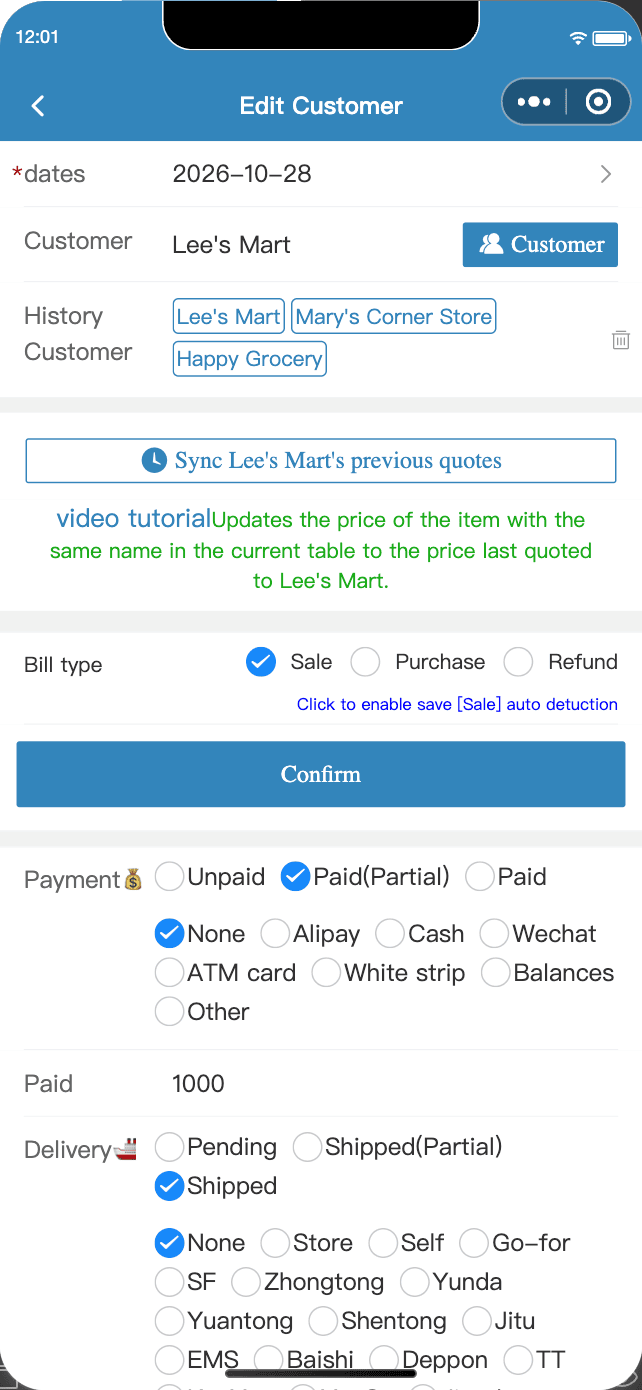
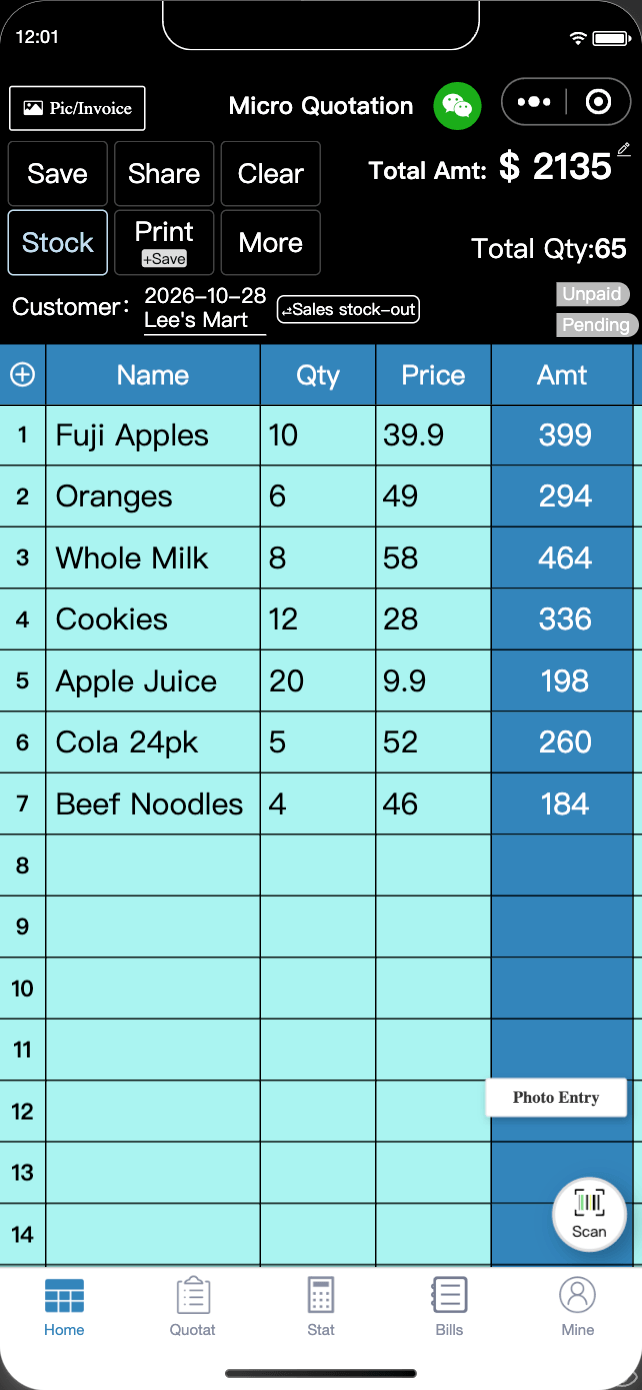
- Create a bill on "Home" and tap the customer name area above the table to open "Edit Customer";
- Choose the customer, then tap "Sync [customer name]'s previous quotes";
- Items in the table with the same name switch to the prices you last charged that customer.
Method 2: Price lists + customer groups (recommended)
Best for fixed wholesale or VIP pricing: create a price list, bind it to a customer group, and customers in that group get those prices automatically.
1. Create a price list
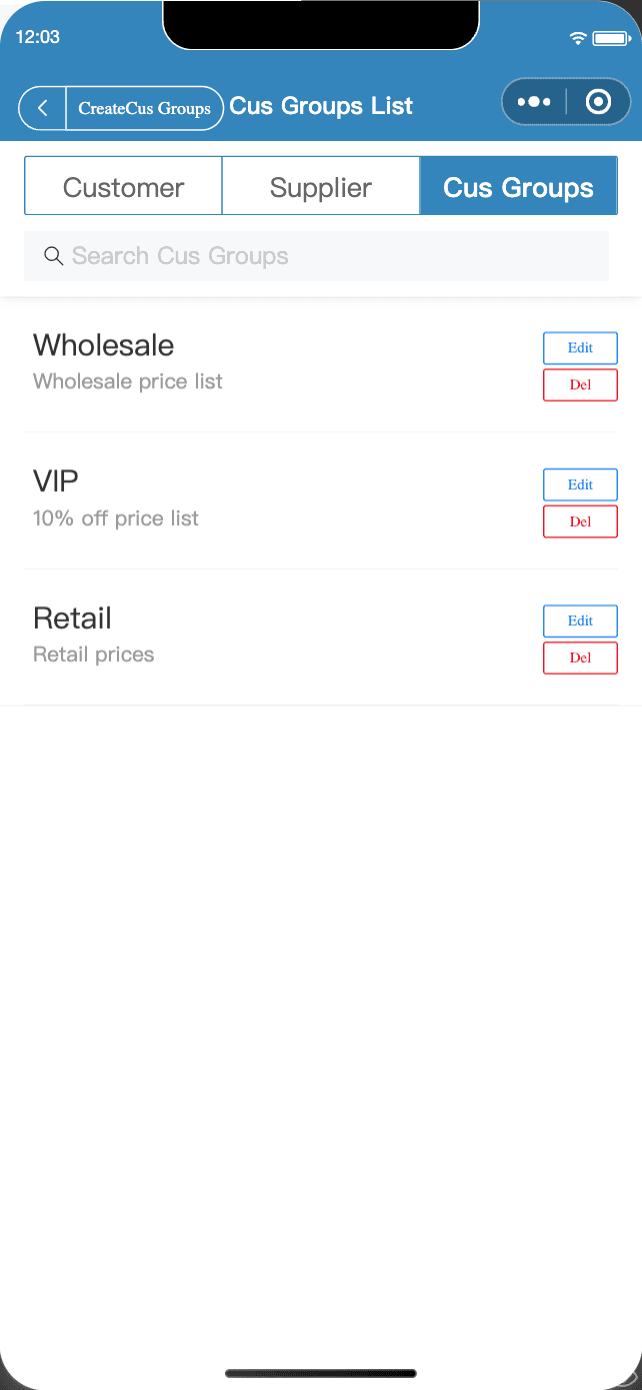
- "Mine" → "Customer" → switch to "Cus Groups" → "Create";
- Next to "Price List", tap "Bind" to open the price list page, then tap "Create Price List";
- Choose a type: Fixed price (set each price yourself) or Discount (e.g. 10% off everything);
- Set "Is the new product automatically included?" and "Is it public?", select products, and use "Batch Edit Prices" to change prices quickly.
2. Where the prices apply
- Billing and scan-to-bill for customers in the group use the price list;
- Customers see their own prices when they view your quote or place self-service orders;
- In "Quotation", use "View Price Group" to switch and compare anytime.
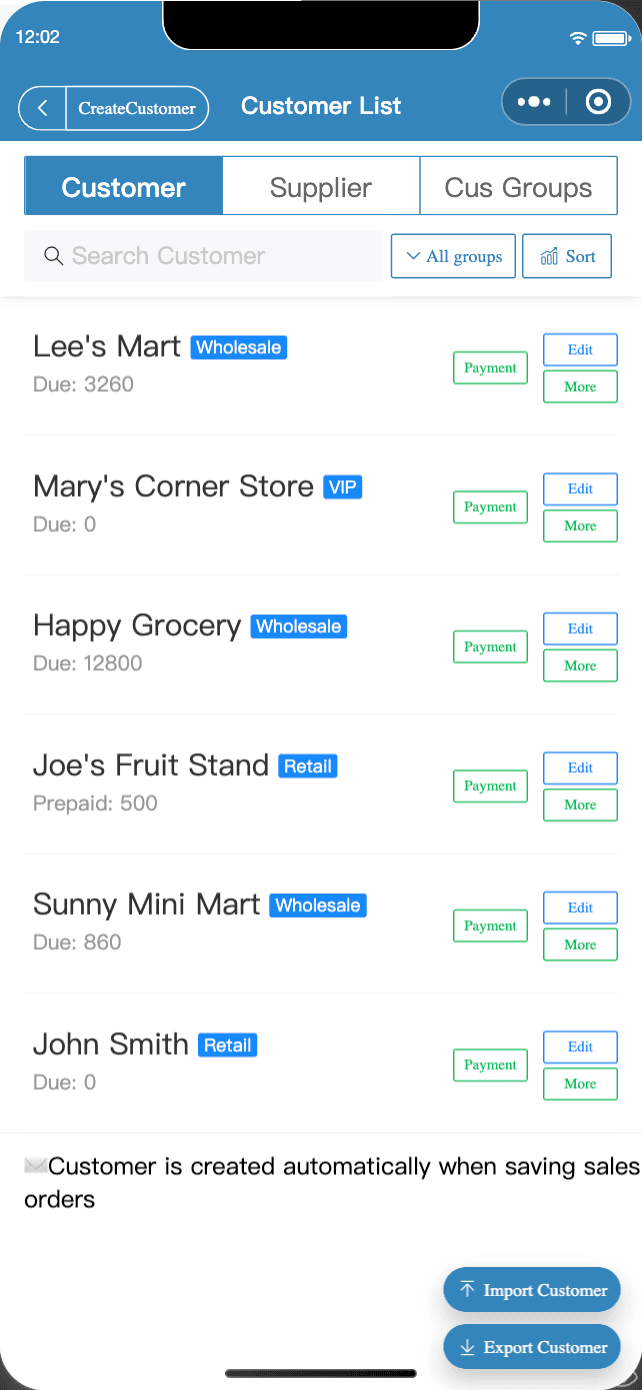
For more on customer groups, see the customer groups guide; for customer self-service ordering, see the self-service ordering guide.
FAQ
- Do price lists cost anything?
- Price lists are free. Non-members have a daily limit on "Sync previous quotes"; members get unlimited use.
- Are new products added to price lists automatically?
- Turn on "Is the new product automatically included?" when creating the price list, and products you add later join it automatically.
- No records for "Sync previous quotes"?
- That means this customer doesn't have a saved bill with these products yet. Once you save one, you can sync.
Download Micro Quotation and start billing for freeGet the App